If you are an avid Git user like I am, but also happen to work in a Visual Studio environment, you know that getting to your Git Bash command prompt is anything but easy. My typical process looks probably something like yours:
- Open Visual Studio
- Open your project you are working on
- Right click on a folder in the project and choose “Open Folder in Windows Explorer”
- Back your way up through the folders in Windows Explorer till you get to the parent folder that is the root of your project.
- Then right click on the root folder of your project and choose “Git Bash Here”
- Start using Git Bash
To me this process got so annoying and tedious that I finally decided to explorer other options to get to my Git Bash prompt. The best one that I have come up with so far and works perfectly for me is adding the Git Bash as an “External Tool” in Visual Studio. To get started you will need a couple of things:
- Visual Studio (I am doing this with VS 2010 Ultimate)
- msysgit (http://code.google.com/p/msysgit/)
Adding Git Bash Prompt
The first thing we need to do is to add Git to our external tools in Visual Studio. To do this we need to first open up the “External Tools” screen which is located under Tools > External Tools… in Visual Studio.
When the screen is open you are going to want to click the “Add” button and fill in the values to look like the screen shot below:
note: that I am running this from a 64-bit install of Windows 7, if you are using a 32-bit install your Program Files directory will not have the “ (x86)” on the end.
You will now find a new menu item under the Tools menu called Git Bash. This will launch the Git Bash command prompt for your current solution when selected.
Setting Up A Keyboard Shortcut
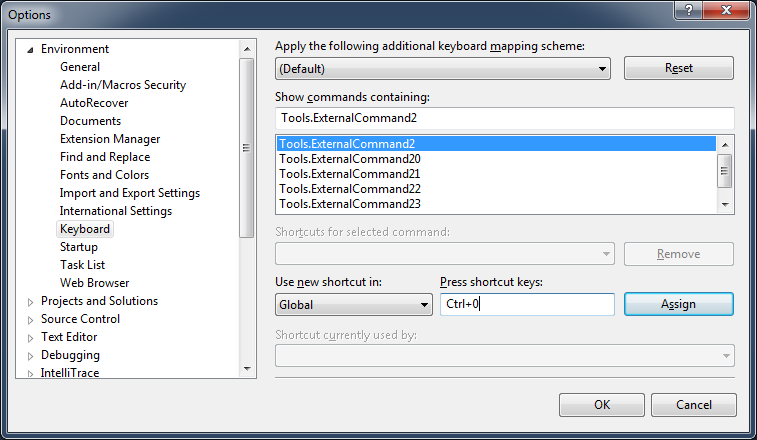
If you are anything like me you will prefer a keyboard shortcut for opening up the Git Bash command prompt. To setup the shortcut we need to first open up the “Options” screen which is located under Tools > Options… in Visual Studio. Then choose Keyboard from the Environment section.
In the Show commands containing text box enter the following in to the text box “Tools.ExternalCommand2” and then in the Press shortcut keys text box press the corresponding keyboard shortcut that you want assigned. (I choose CTRL+0) Then press the “Assign” button and then the “OK” button to exit the “Options” screen.
tl;dr
Hopefully this will be helpful to everybody who has the same affection for Git and Visual Studio as I do.
Git, Visual Studio

Tip I just discovered a couple of weeks ago.
When you have an explorer window open to a directory, you can type “cmd” in the address bar and it will open up a command prompt in that directory.
A tool I have been using for over a year now, and I LOVE it! Auto Hot Key allows you to write, or record your keystrokes and mouse clicks, and turn it into a hot key sequence. Just like WindowsKey + e will load Windows Explorer or WindowsKey + r will open the Run dialog box, Auto Hot Key allows you to have your own HotKey shortcuts. It would do this routine for you very nicely.
Pretty sure that doesn’t work in Windows 8. I know because I was trying to write a system tray app for Windows 8 and ran into this obstacle. You can’t map to the Windows key any more
ClipX was great for WinKey+V for paste, but you have to remap it to like Ctrl+Shift+V now. So disappointed!
FYI if you have NuGet installed you get Powershell- and if you installed Git and have added it your path, you can run your git commands from within Powershell, and thus NuGet.
I usually keep msysgit contained in the bash shell, never really tried exposing it to the command line
Hey Nick,
Thanks for the article!
You should also check out this link about Git Extensions and its integration into VS. I works really well!
http://devlicio.us/blogs/krzysztof_kozmic/archive/2011/01/26/git-tooling-for-net-developers.aspx
Mark
I have used their extensions. JP Toto suggested them to me a while back. But for some reasons I just keep going back to the command line.
Thank you. This is awesome.
Thanks for the tip! (Why didn’t I think of that before…?)
For myself, an avid Console2 user (http://console.sf.net), I expanded your solution to use my pretty Console2 Git session setup instead. Maybe someone else is interested:
1. Create a tab in Console2 for Git, using the path settings from Nick’s tip above. (Set the startup folder to whatever.) Set the name of the tab to “Git”.
2. In the Visual Studio External tools settings, replace Nick’s settings with the following (update to reflect your own paths):
Command: C:\Program Files (x86)\Console2\Console.exe
Arguments: -t Git -d $(SolutionDir)
3. Done!
This command starts the Git bash inside a Console2 tab instead, and jumps to the correct folder as well. Console2 is highly configurable: fonts, colors, and more can be set easily.
Riku
It’s so silly that it calls things “ExternalCommand2″. It’s so hard to find your custom external tools. You have to give it a name for the tools menu anyway so why doesn’t it reference them with that name when you try to make hotkeys or add them to toolbars? Very frustrating. I had 24 external commands and I had to go through them one by one until I found that mine was “ExternalCommand7″.
OMG Excellent post!
BTW, if you have GitHub for Windows installed there’s no need to install anything else. Just point your command to:
C:\Users\\AppData\Local\GitHub\PortableGit_93e8418133eb85e81a81e5e19c272776524496c6\git-bash.bat
Make sure to copy your actual location on that one.
Also, in my case, my solution file is on a completely different drive than the projects, so I used $(ProjectDir) instead of $(SolutionDir). Works like a charm!