Recently I decided it was important to get away from Google App Engine as my CDN, mostly because I have encountered personally and have been told that many internal corporate networks are blocking Google App Engine IP’s. And since most of my content posted to this blog is relevant to developers, who typically work in the corporate world, I decided to make the move. And boy am I glad I did.
If you already know the purpose of a CDN please skip ahead.
What is a CDN?
According to Wikipedia on what a CDN is:
A content delivery network or content distribution network (CDN) is a system of computers containing copies of data, placed at various points in a network so as to maximize bandwidth for access to the data from clients throughout the network. A client accesses a copy of the data near to the client, as opposed to all clients accessing the same central server, so as to avoid bottlenecks near that server.
Straight forward enough right? Basically servers specifically designed for delivering static content as fast as possible to the client’s browser so that web pages spend less time loading.
So what is a mirroring CDN?
A mirroring CDN doesn’t require you to upload anything to get started. Basically you point it at your server where all the content is located. As requests are made to the CDN for your static content, it retrieves it from your servers and stores it on the CDN network for a specific amount of time before it looks for a fresh copy. While stored on the CDN network it constantly serves from that cached copy, this reduces the bandwidth and strain on your server, because the CDN only requests the static file once until the CDN file has timed out. The time out is typically an hour or a day, but can be longer based on your settings.
Setting up a mirrored CDN
The first thing you will want to do is setup an Amazon Web Services account, which can be done, for free, here:
After you have a confirmed account, you can start your stop watch for the 5 minutes, if you are really timing me.
- Sign in to the console: https://console.aws.amazon.com/s3/home
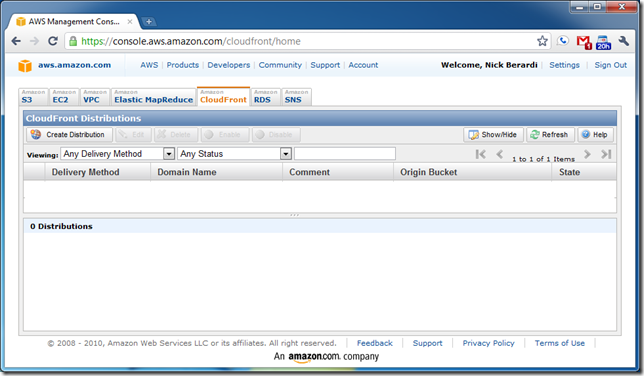
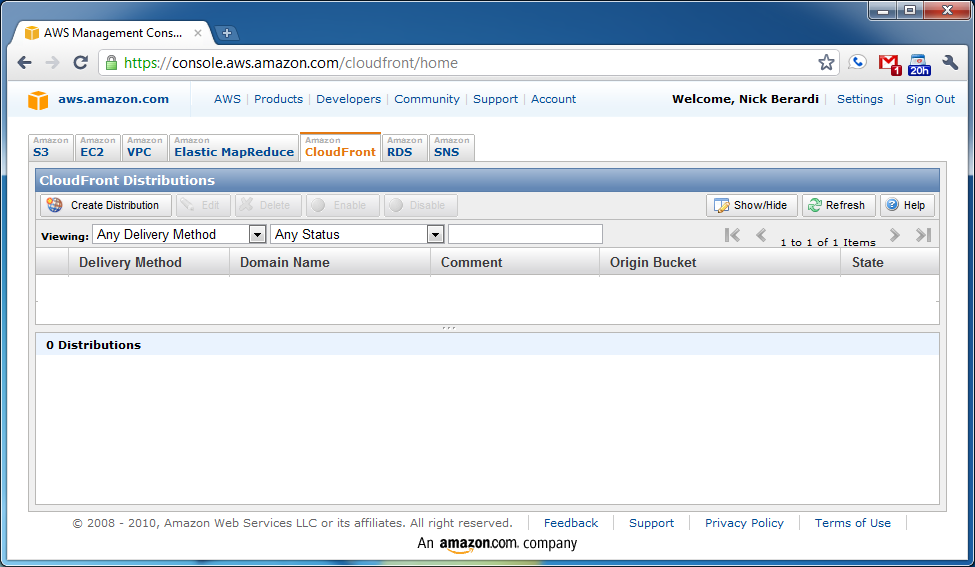
- Click the Amazon CloudFront tab, and you will see a screen that looks like this:
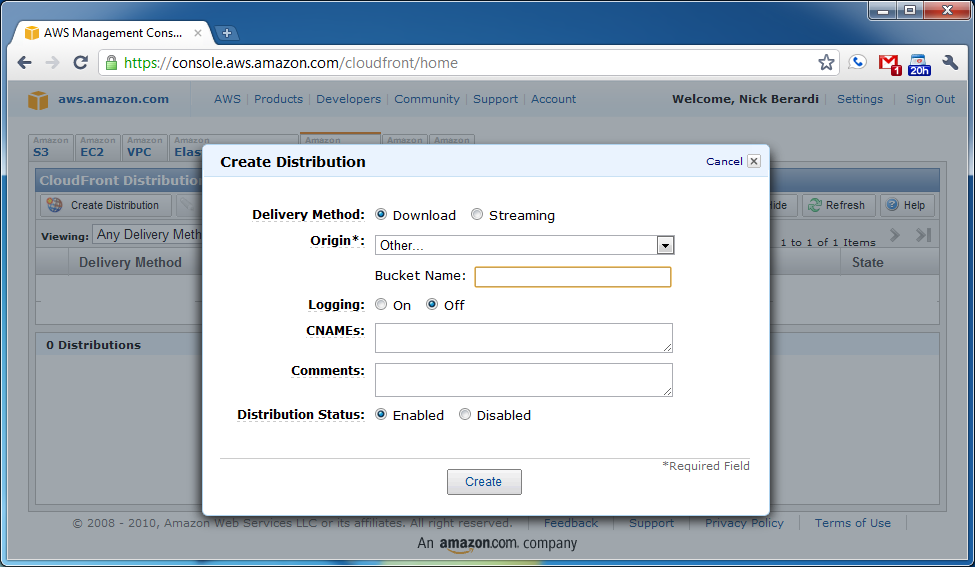
- Click the Create Distribution button, and this screen will appear:
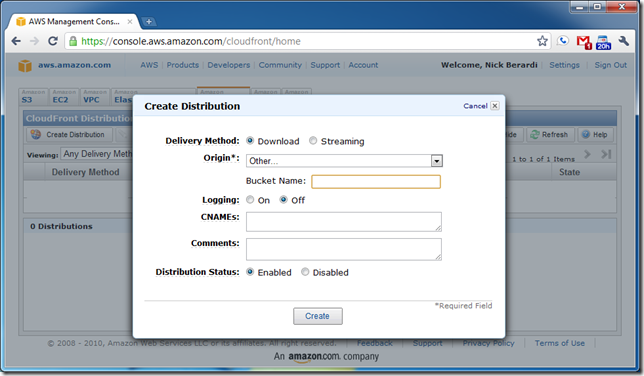
- Select Other… from the Origin drop down.
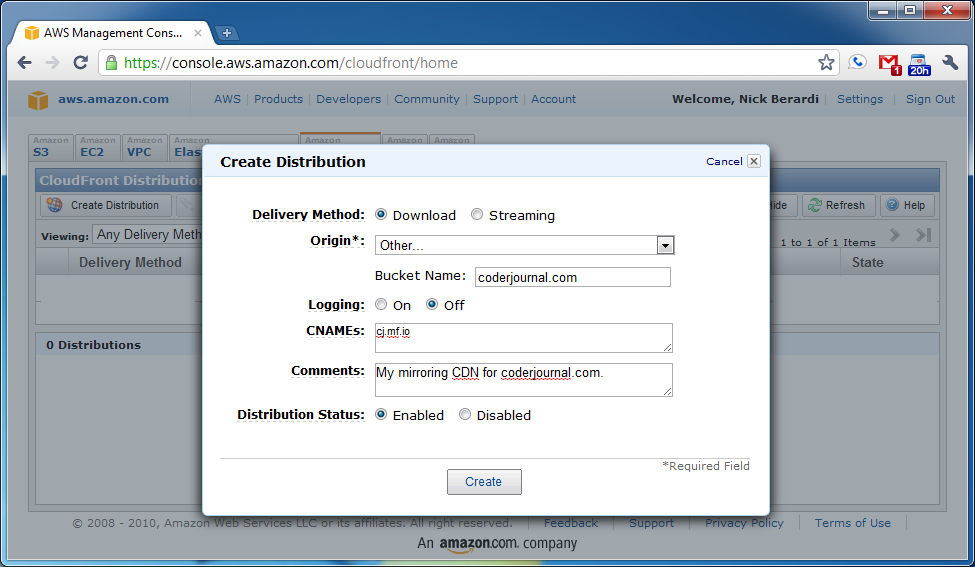
- In the Bucket Name enter the domain that you want to mirror, in my case it is coderjournal.com.
- If you want to use a CNAME for your mirroring CDN, which is totally optional, enter it in the CNAMEs textbox, in my case it is cj.mf.io.
- Make sure Distribution Status is set to Enabled.
- After all fields are filled in it will look something like this:
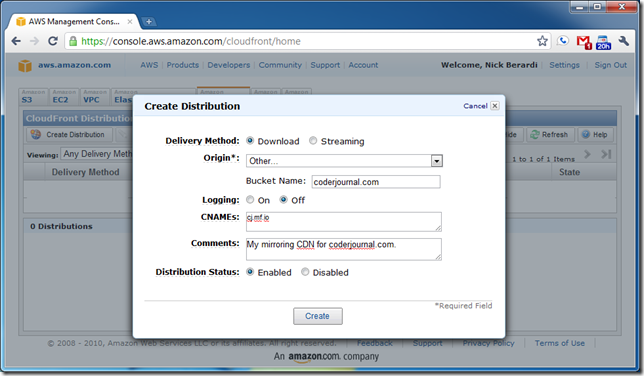
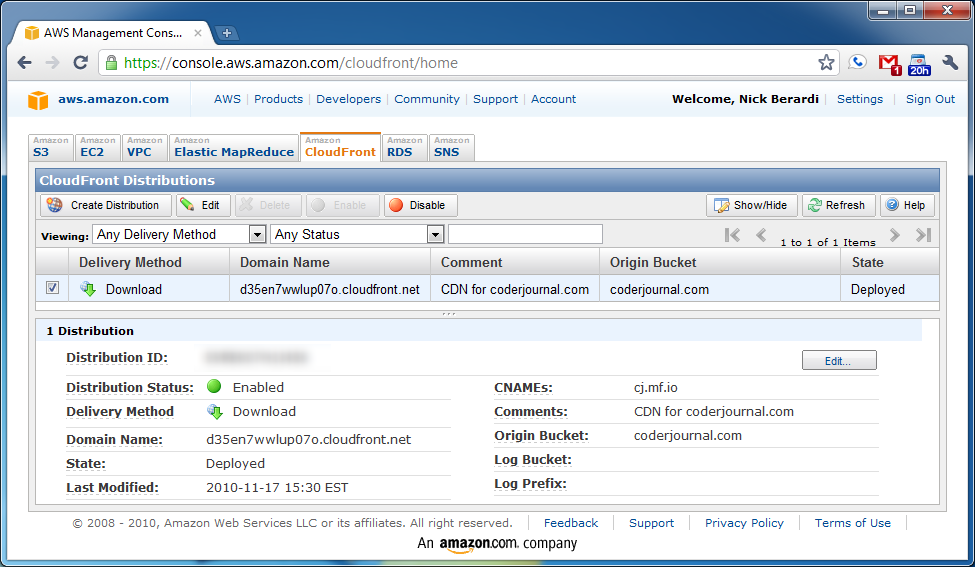
- Click the Create button, and you are done.
- When the State says Deployed you are ready to start serving your content from you new mirroring CDN.
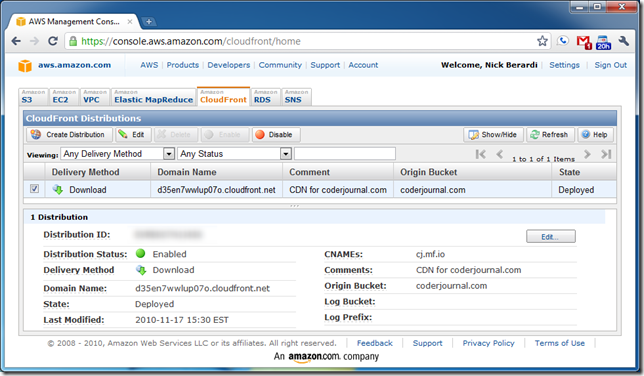
- If you decided to use a CNAME for the CDN, just take the Domain Name field on the left hand column and enter that for the CNAME in your DNS.
Stop your stopwatches, we are done.
How do I use it?
Well this is the great part, and probably the easiest step. Where ever the static files reside on your domain that you entered in as the Bucket Name just use that same path but replace the domain name.
For example, I host a picture of my book on coderjournal.com which can be accessed using the following URL:

If I want to access this same resource from my mirroring CDN, I just swap out the “coderjournal.com” for “cj.mf.io” and the mirrored copy is available from 17 locations around the world. (as of writing this blog post)

To incorporate this in to your web applications just start using the new mirrored CDN domain for you static content instead of your web applications domain.
What will this cost me?
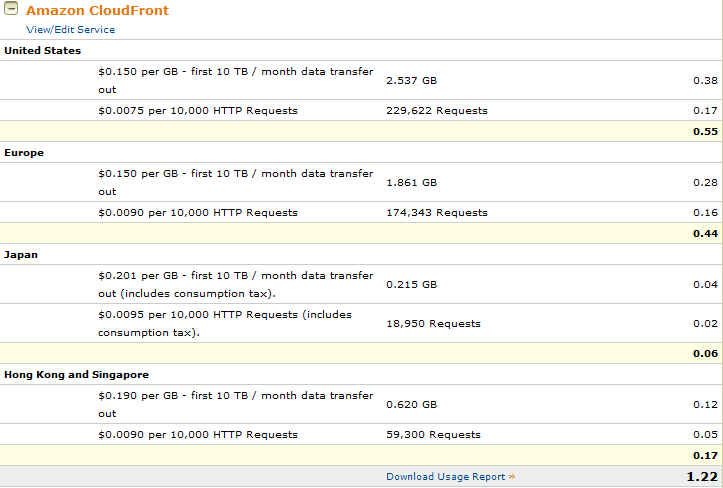
Obviously applications and usages differ but as an example of how dirt cheap this service is in my opinion. Here is the break down for the whopping $1.22 that I have racked up this month so far:
Conclusion
Hopefully this is going to help you take the plunge because you can get a ton of extra bandwidth from your applications server by deploying the static content to a CDN. And between the low cost and easy setup of the CloudFront service, it is really a no-brainer.
Have a Merry Christmas and a Happy New Year.